
Bank Masterlist
A "bank" typically refers to a financial institution where a business holds its financial accounts, such as checking accounts, savings accounts, and other banking-related activities. Banks play a crucial role in financial transactions, payment processing, and managing the financial aspects of sales and inventory operations. Cash Flow Management: By tracking incoming and outgoing payments, the system contributes to managing the business's cash flow, helping ensure sufficient funds are available to cover expenses.
How to Create a New Banks:
- Go to Master Data Files
- Click Accounting Parameters
- Click Banks
- Click Create New (F1)
- Enter the details of the new bank.
- Click Save (F2)
Visual Guide
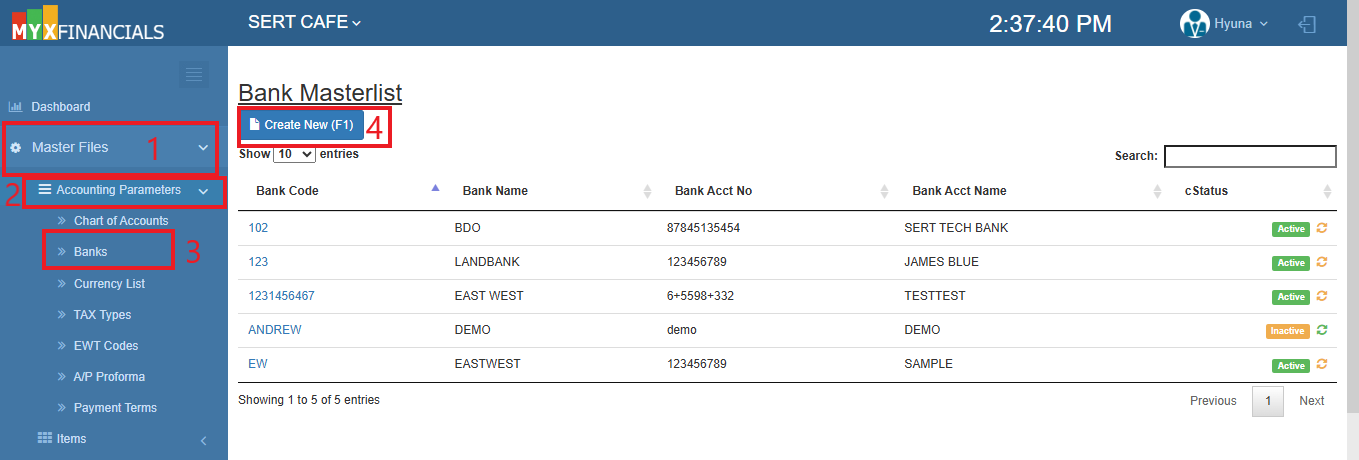 Figure 1: Bank Masterlist.
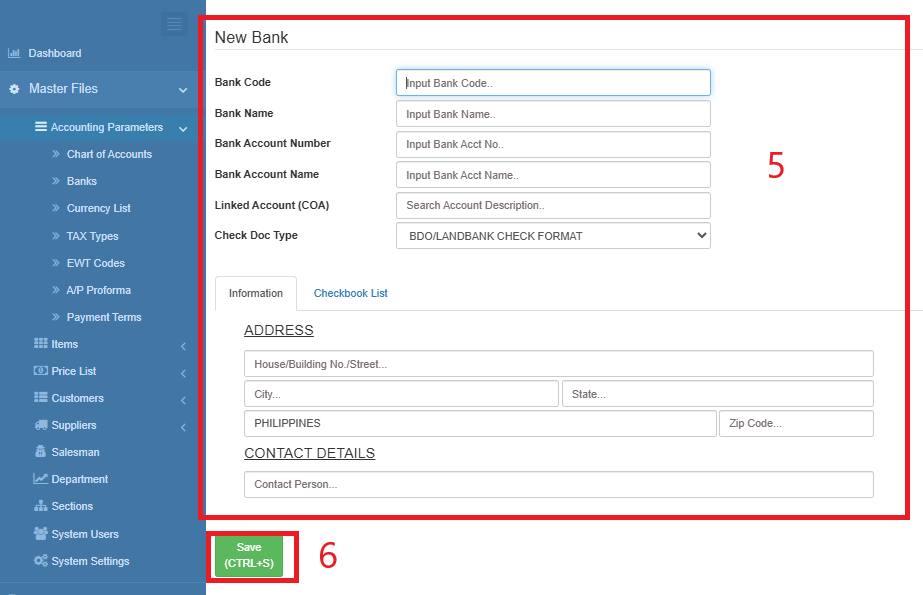 Figure 2: The New Banks entry screen.
How to Update the banks:
- Go to Master Data Files
- Click Accounting Parameters
- Click Banks
- Select a bank and click the blue font text or Bank Code.
- When the bank details appear, Click Edit (CTRL+E).
- Enter the new details of the bank.
- Click Save (CTRL+S)
Visual Guide
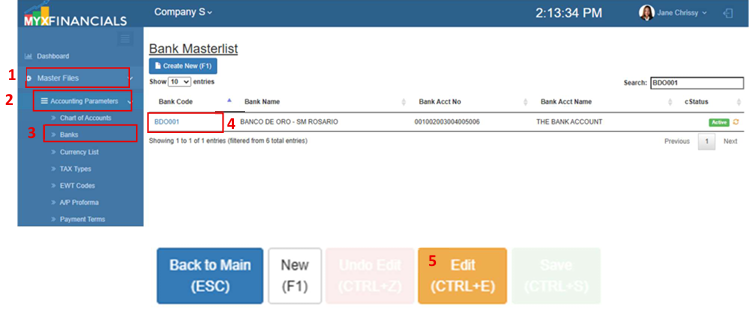 Figure 3: Edit an existing Banks.
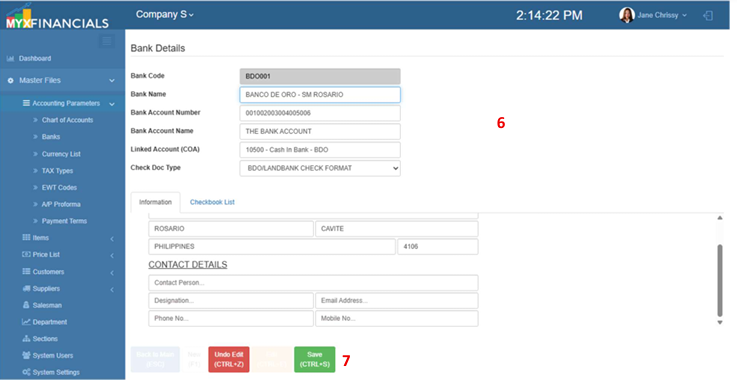 Figure 3: Edit the details and save.
How to inactive the banks:
- Go to Master Data Files
- Click Accounting Parameters
- Click Banks
- Click the yellow cycle icon or Inactive
o Click the green cycle icon or Active to activate the item.
Visual Guide
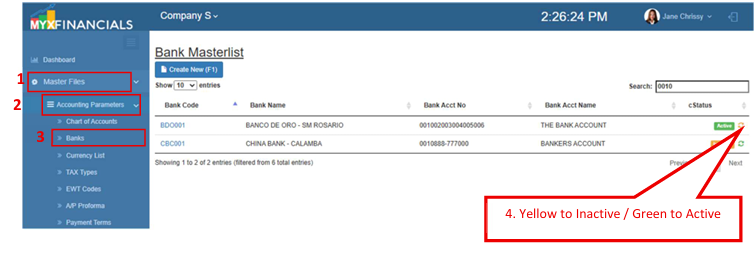 Figure 3: Inactive an existing Banks.