AP Adjustment
AP (Accounts Payable) Adjustment is used to modify or correct outstanding balances owed to suppliers. This ensures your AP Ledger matches your actual obligations after discounts, corrections, or returns.
💡 Important Rule: You must create the Supplier’s Invoice in its full amount first before creating an adjustment. This adjustment will then be reflected in the APV (Accounts Payable Voucher).
How to Create a New Transaction
Start the Entry:
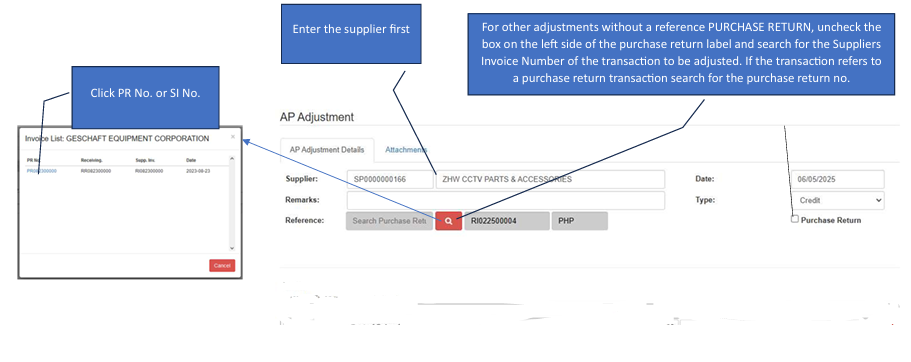
Click the Create New button.Select Supplier:
Enter the Supplier name first. The search tools will not function correctly until a supplier is selected.Link Reference:
Click the Search (Magnifying Glass) button to pull up existing records.Select Reference No.:
Inside the pop-up, click the specific PR No. (Purchase Receipt) or SI No. (Supplier Invoice) that requires the adjustment.Set Accounting Details:
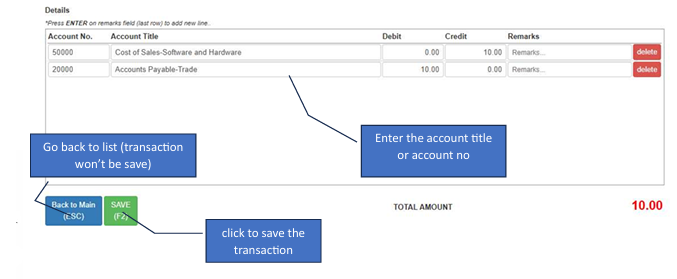
In the Details section, enter the appropriate Account Title or Account No. for the adjustment (e.g., Purchase Discounts or Returns).Save:
Review the adjusted totals and click the Save button.
How to Edit a Transaction
💡 Note: Only transactions without a reference (or with a cancelled reference in AP Voucher) are available for unposting/editing.
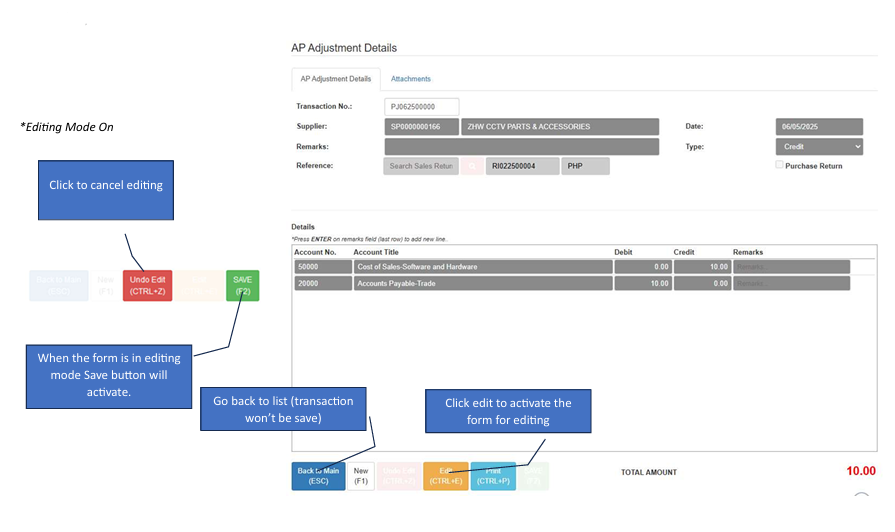
Locate Record:
From the main dashboard, click the specific Transaction No. you wish to modify.Activate Edit Mode:
Click the Edit button to unlock the fields.Update & Save:
Once you have corrected the Account Titles or amounts, the Save button will activate. Click it to finalize your changes.