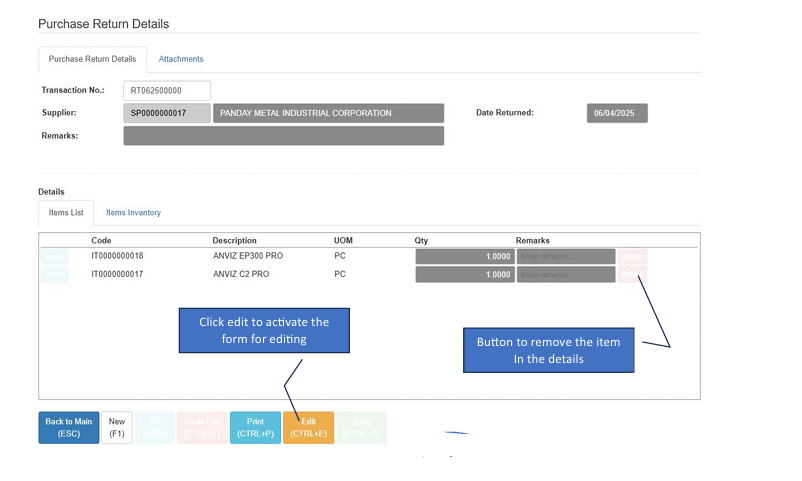
Purchase Return
Purchase Return allows you to return goods to vendors. This module corrects previous purchase transactions, ensuring your inventory levels and Accounts Payable records remain accurate.
💡 Note: Transactions can only be voided if they have no active references (or cancelled references) in AP Adjustment.
How to Create a New Transaction
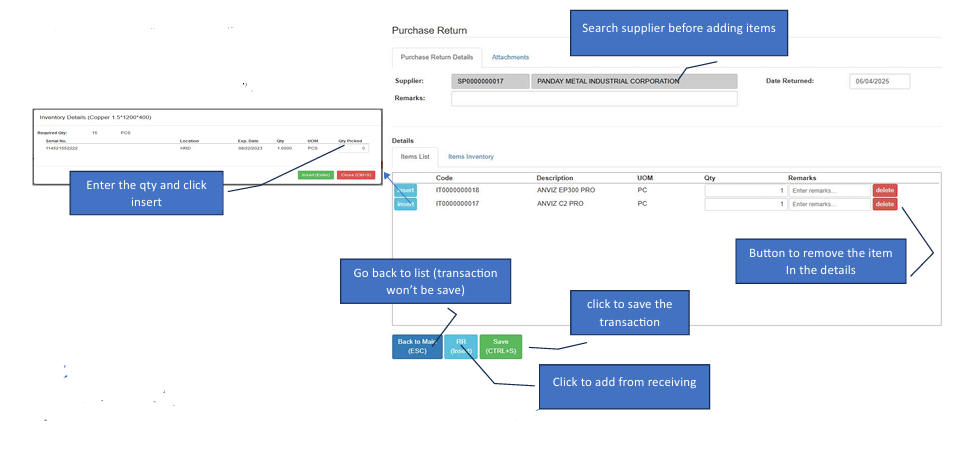
Start the Return: Click the Create New button to open the form.
Select Supplier: Search for and select the Supplier name first.
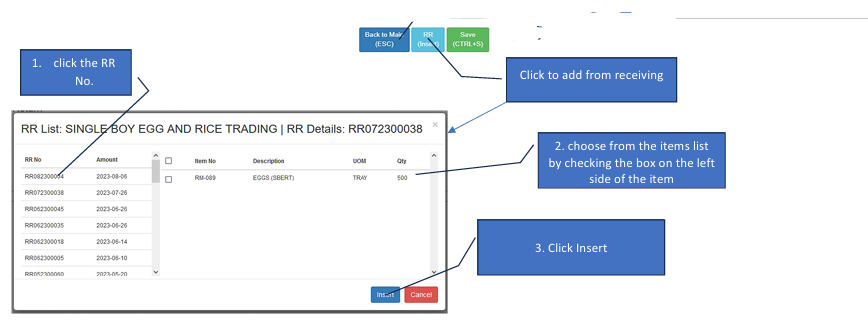
Open Item Reference: Click the PR (Insert) button. This will open a separate pop-up window to pull from your Receiving Reports.
Choose the Reference: Inside the pop-up, click the specific RR No. you are returning items from.
Select Items to Return: Check the boxes on the left side of the specific items.
Insert to Main Form: Click the Insert button at the bottom of the pop-up. This will move the items into your main transaction details.
Save: Review your return quantities on the main form and click Save.
How to Edit a Transaction
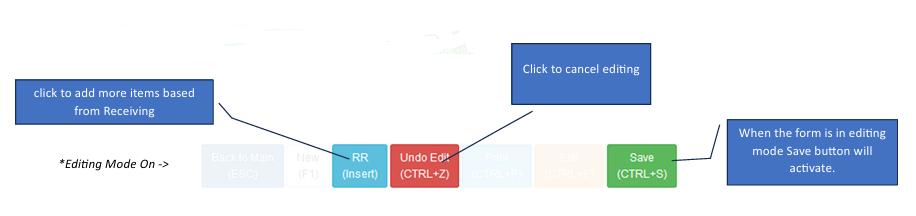
Enter Edit Mode: Click the Edit button to unlock the form.
Add Additional Items: Click RR Insert to open the item selection window again if you need to add more items from a different receiving record.
Remove Items: Use the Delete button next to any line item to remove it from the return list.
Save or Discard > Save Button: Becomes active only while in editing mode. Red Button (Undo Edit): Click this to cancel your current changes.