
Discount Matrix
The Discount Matrix is used to define specific discount rules for your products. Once set up, these discounts are automatically applied during sales transactions within their effective dates.
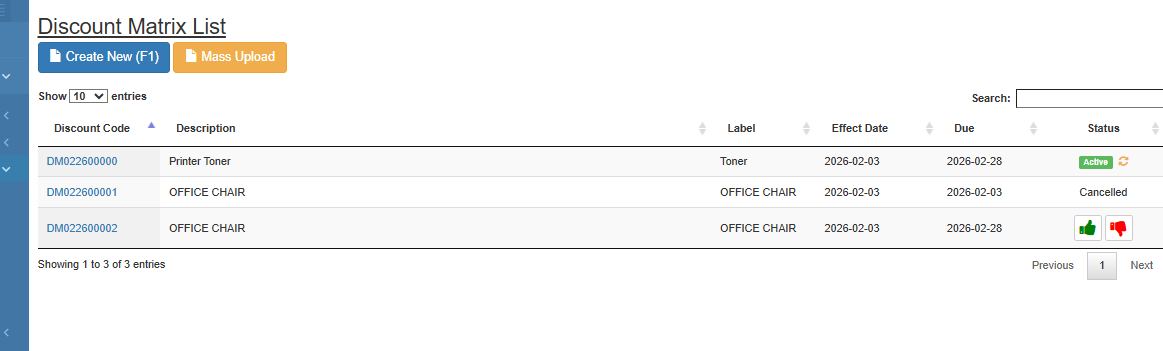
1. How to Add a New Discount
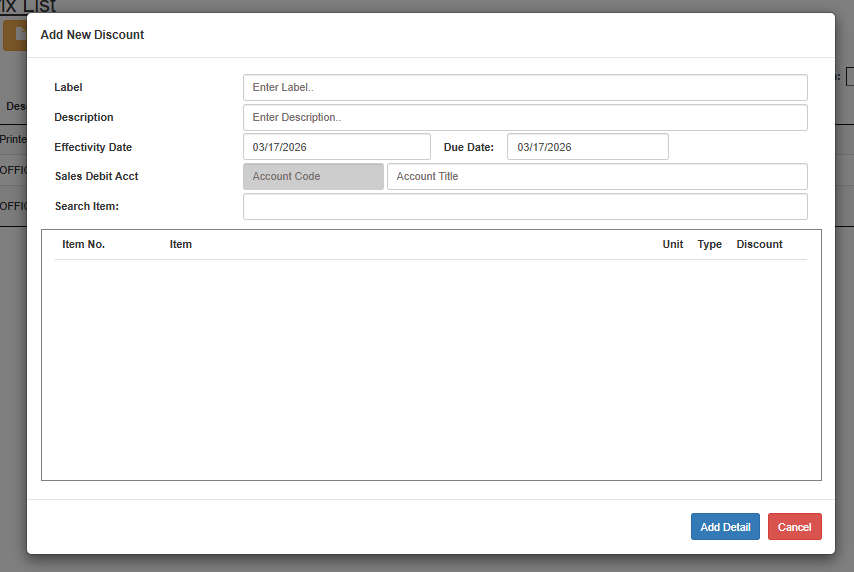
To manually create a single discount rule:
Go to Master Files > Price List > Discount Matrix.
Click the Create New (F1) button.
Enter Label: Provide a name for the discount (e.g., "Summer Sale 2026").
Enter Description: Add details about what the discount covers.
Effectivity & Due Date: Set the start and end dates for when this discount is valid.
Sales Debit Acct: Select the appropriate account from your Chart of Accounts to record the discount expense.
Search Item: Add the specific items that qualify for this discount.
Click Add Detail and then Save.
2. Discount Matrix Mass Uploading
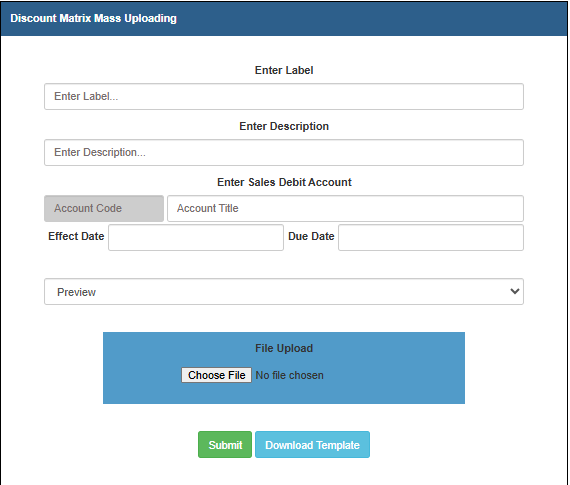
If you have a large list of items to discount, use the Mass Upload feature to save time.
Steps to Mass Upload:
In the Discount Matrix list view, click the Mass Upload button (orange icon next to Create New).
Label & Description: Enter the general identification for this batch upload.
Sales Debit Account: Select the account where these discounts will be logged.
Effect Date & Due Date: Define the timeline for the entire batch.
File Upload: Click to select your prepared CSV or Excel template containing your item list and discount rates.
Preview: Click to review the data for any errors before finalization.
Save: Click to apply all discounts in the file to the system.
3. Typical Parameters & Visual Guide
| Field | Description |
|---|---|
| Label: | The identifier for the discount campaign. |
| Effectivity Date: | The day the discount starts being active in sales. |
| Due Date: | The day the discount automatically expires. |
| Sales Debit Acct: | The GL account that tracks the reduction in revenue. |
💡 Tip: Use the Preview button during mass uploading to catch mismatched Item Codes before they are saved to your live database.