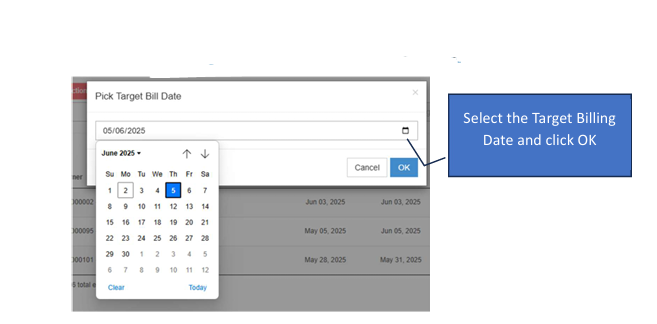
Quotation
The Quotation module is used to provide cost estimates to customers or to set up recurring billing for services. These documents serve as the primary reference for creating Sales Orders or final Sales Invoices.
How to Create a New Transaction
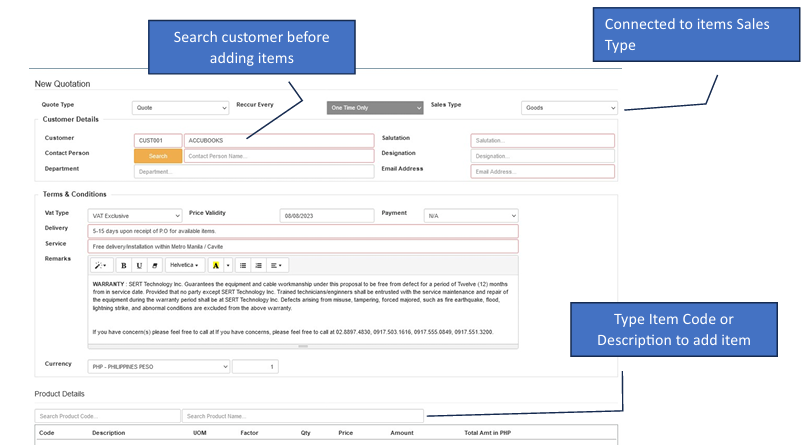
Start the Entry Click the Create New button to open the form.
Select Customer First Search for and select the Customer before adding any line items.
Select Sales Type Use the dropdown menu to choose the Sales Type connected to your items.
Choose Document Purpose > Quote: Use this for standard estimates. These can be referenced later to create a Sales Order. Billing: Use this for monthly service offerings. These can be referenced later to create the final Sales Invoice.
Add Items Type the Item Code or Description in the details section to add your items.
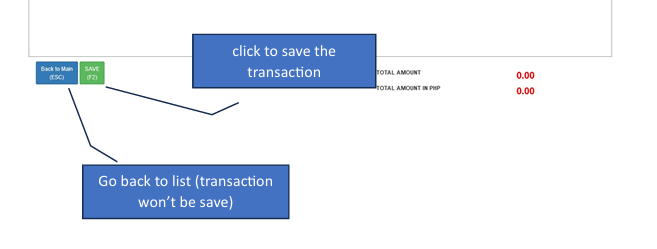
Save Review the details and click the Save button.
How to Edit a Transaction
✔️ Note: You can edit a transaction as long as it has not been posted or cancelled.
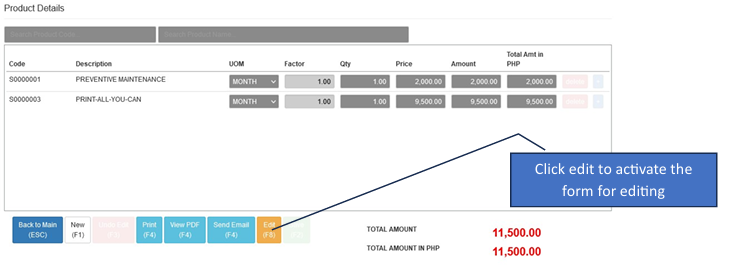
Enter Edit Mode Click the Edit button to activate the form.
Modify Details Update the customer info, items, or quantities.
Commit Changes While in editing mode, the Save button will activate. Click it to finalize.
Sending & Approvals
Send Email: To activate the Send Email button, you must enter a valid email address in the recipient text box.
Bulk Approval: To approve multiple quotes at once, check the boxes next to the transactions in the list and click Approve Transaction.

Recurring Transactions
Recurring transactions save time by automatically generating multiple entries based on a schedule (e.g., monthly billing).
Set the Recur Type (Weekly, Monthly, etc.).
The system will automatically generate the transactions according to the routine task settings.