
Sales Order
How to Create a New Sales Order:
- Go to Sales & Delivery
- Click Sales Order
- Click Create New (F1)
- Enter the details of the new transaction.
- Click Save (CTRL+S)
Visual Guide
 Figure 1: Create, Void and Batch Approval.
- ClickRed Buttonto void a transaction
- ClickGreen Buttonto approve a transaction
- Filtering parameters are used to search or filter your data
💡 Take note: Only transactions without reference or with cancelled reference to Deliver Receipt or Sales Invoice will be available for voiding.

- click the transacion no.to edit
- ClickGreen Liketo approve a transaction
- ClickRed Liketo cancel a transaction
Creating a new transaction:
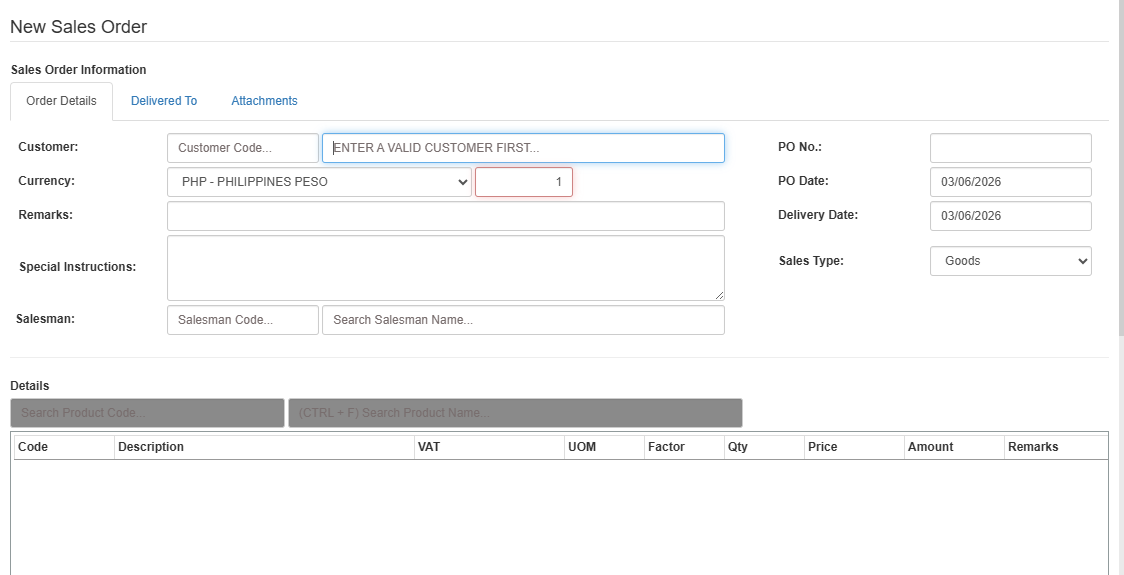

- Search customer before adding items .
Sales Type: Connected to items Sales Type .
Details: Type Item Code or Description to add item.
Click Green Button SAVE to save the transaction.
Click Back to main To Go back to list (transaction won’t be save).
Click Quote Insert Button to add items based from a quote
💡 Take note:Order Details Customer > the customer to be billed or to appear in Sales Invoice, Delivered To Customer > the customer who will receive the delivery or to appear in the Deliver Receipt
How to edit the transactions:
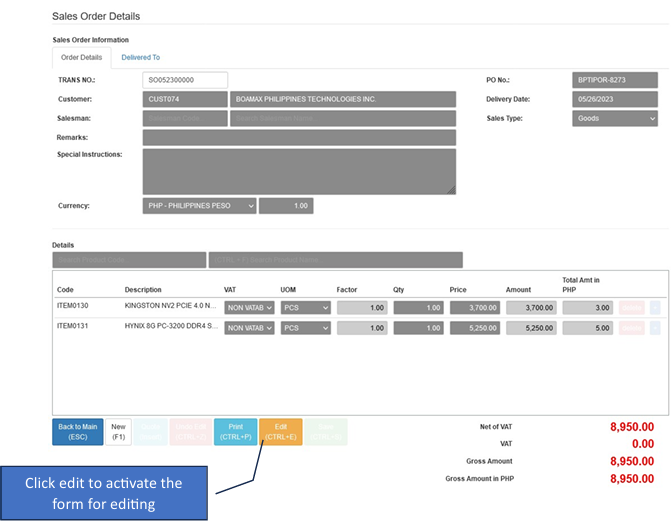
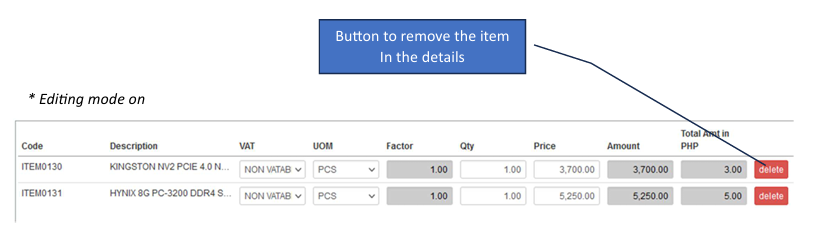
💡 Take note:You can edit a transaction as long as it is not yet posted or cancelled.

Quote Insert button > click to add more items based from a quote.
Red button the Undo Edit Button > Click to cancel editing.
Green button > When the form is in editing mode Save button will activate.