Sales Reports
MyxFin provides a robust suite of reporting tools designed to track the complete lifecycle of a sale—from the initial order to final payment collection.
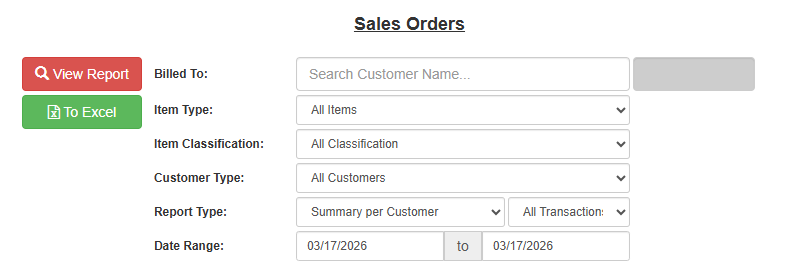 Figure 1: SalesOrder Report.
1. Summary of Available Reports
Use this table to identify which report best fits your current needs:
| Report Name | Best For... |
|---|---|
| Sales Order | Tracking all active and pending orders. |
| Sales per Item | Analyzing which products are your top sellers. |
| Sales per Customer | Monitoring revenue generated by specific clients. |
| Sales Summary / Detailed | Getting a high-level overview or a line-by-line history of all sales. |
| SO vs DR vs SI | Auditing the flow from Order → Delivery → Invoice. |
| Discrepancy (SO vs DR) | Identifying "Partial Deliveries" (items ordered but not yet shipped). |
| AR Monitoring | Real-time tracking of unpaid Sales Invoices. |
| AR Ageing | Categorizing outstanding debt by age (e.g., 30, 60, 90 days). |
| Statement of Account | Generating formal customer summaries with authorized signatures. |
2. Standard Filtering & Action Buttons
Most reports in the Sales module share a consistent interface.
Filters: You can narrow results by Billed To, Item Type, Classification, Customer Type, and Date Range.
View Report (Red Button): Click this to render the report data directly on your screen.
To Excel (Green Button): Click this to download the data into an
.xlsxfile for external analysis.
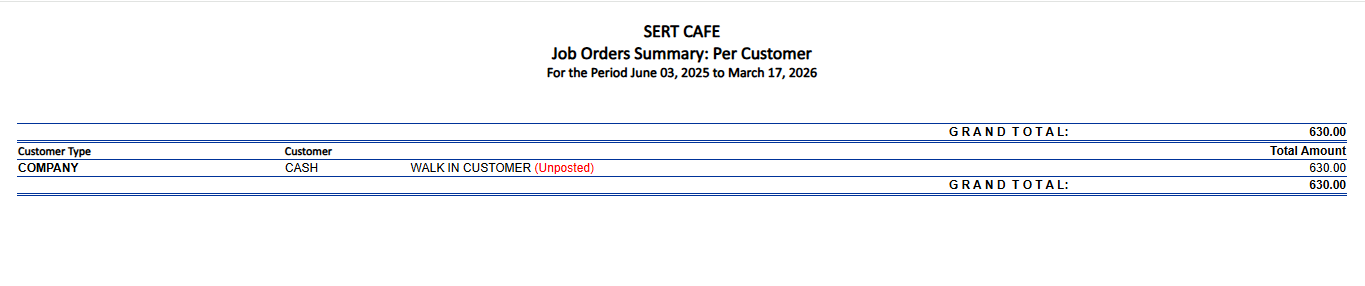 Figure 2: To Excel .
3. Specialized Report: AR Ageing
The AR Ageing report features unique settings to help you manage your credit collection based on your specific company policy.
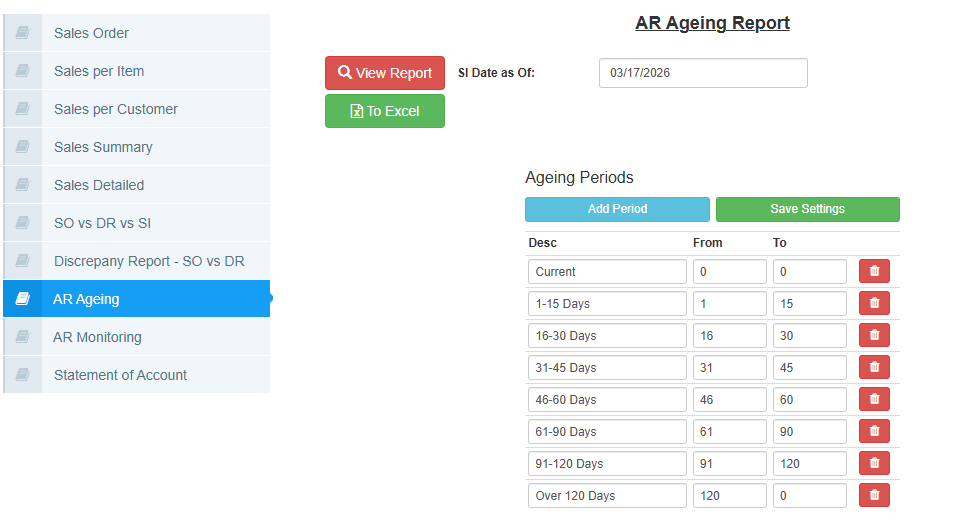 Figure 3: AR Ageing.
SI Date as Of: Sets the "cutoff" date. The system calculates how old an invoice is based on this date.
Ageing Periods: Customize your time brackets here.
- Desc: The label (e.g., "Current," "Overdue," "Critical").
- From / To: The day range (e.g., From 31 To 60).
Management: Use Add Period to create more brackets and Save Settings to store this configuration for future use.
4. Specialized Report: Statement of Account (SOA)
The SOA is a customer-facing document. To ensure it meets your internal audit requirements, you can manage Signatories.
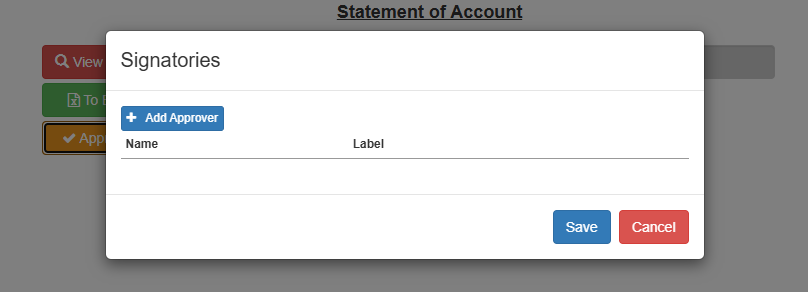 Figure 4: Statement of Account (SOA).
Approvals Section: Click the Add Approver button to create a signature line.
Name: Enter the full name of the employee (e.g., "Kenneth Andrew").
Label: Enter their official title (e.g., "General Manager" or "Prepared By").