
Audit Trail
The Audit Trail serves as the system's "black box," recording every significant action taken by users. This is essential for internal audits, troubleshooting data changes, and monitoring security.
1. Understanding the Audit Log
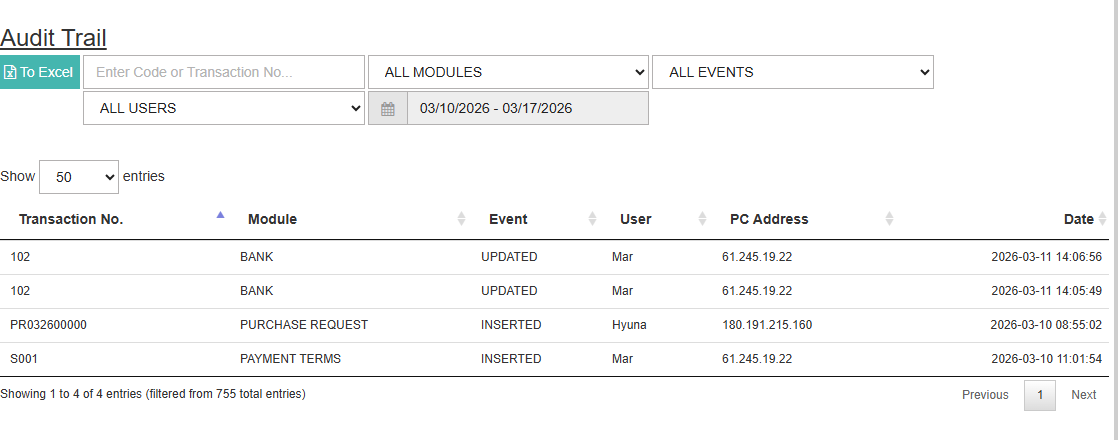
The Audit Trail provides a granular, real-time history of every system interaction. Each log entry captures the following key data points:
Transaction No. : The specific ID or Reference Number of the record affected (e.g., SO# 102 or PR# 032600000).
Module : The specific area of MyxFin where the action occurred (e.g., BANK, PURCHASE REQUEST, PAYMENT TERMS).
Event : The type of action performed: INSERTED (Created), UPDATED (Edited), or DELETED.
User : The name of the staff member who performed the action.
PC Address : The IP address of the computer used, providing a location/network footprint for the event.
Date : The exact timestamp (Year-Month-Day Hour:Minute:Second) of the activity.
2. Filtering Your Search
Because the system logs hundreds of entries daily, use the filters at the top to narrow down your investigation:
Code/Transaction No: Type a specific document number to see its entire history.
Module Dropdown: Filter by specific sections (e.g., only see changes in the "Sales" or "Bank" modules).
Event Dropdown: Filter by action type, such as seeing only "DELETED" entries.
User Dropdown: Monitor the activity of a specific employee.
Date Range: Select a specific period to review logs.
3. Key Features & Actions
Entries Selector: Use the "Show [X] entries" dropdown to view more rows on a single page (up to 100).
Search Bar: Real-time filtering of the current table view.
To Excel (Teal Button): Export the filtered audit log to a spreadsheet for formal reporting or deep-dive analysis.
💡 Security Tip: If you notice an unauthorized change to a transaction, check the PC Address column. This helps verify if the action was performed from within the office or from an unrecognized external network.