Purchase Request
The Purchase Request (PR) module allows you to request items or services before a formal Purchase Order is created. This ensures all procurement is tracked and approved.
💡 Note: Transactions can only be voided if they have no reference (or a cancelled reference) to a Purchase Order.
How to Create a New Transaction
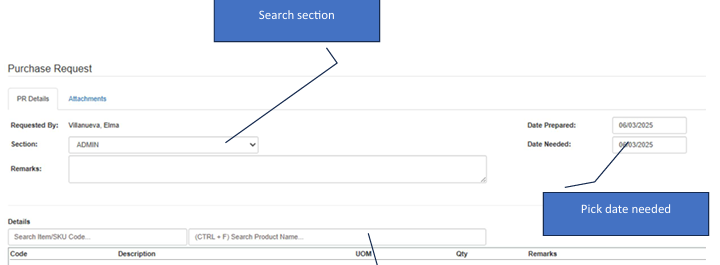
Start the Request: Click the Create New button to open the form.
Assign Section: Select the appropriate Search Section to identify which department is making the request.
Set Deadlines: Use the Date Needed picker to specify when the items or services are required.
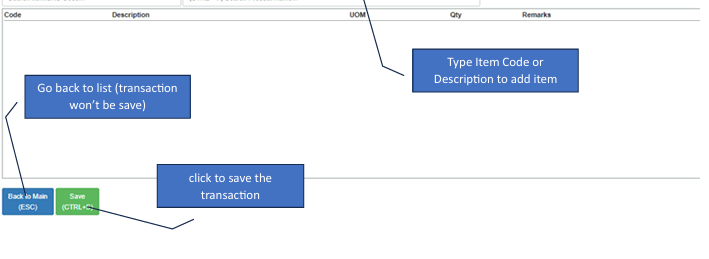
Add Items: Type the Item Code or Description in the details section to add items to your request.
Finalize: Review your list and click the Save button.
How to Edit a Transaction
✔️ Editing Tip: You can modify a transaction as long as it has not been posted or cancelled.
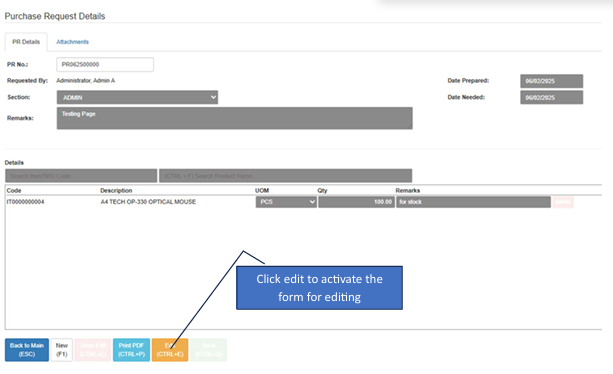
Enter Edit Mode: Click the Edit button to unlock the form.
Make Changes: Update your item quantities, descriptions, or required dates.
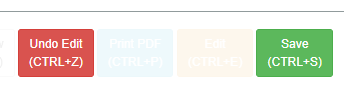
Save or Discard: Save Button> Becomes active only while in editing mode. Click to commit changes. Undo Edit> Click this to cancel your changes and revert to the previous saved state.