Inventory Count
Inventory count, often referred to as "inventory coun ng" or "stock counting," is a crucial process within a sales and inventory system. It involves physically verifying and recording the quan ty of goods or products a business has on hand at a specific point in me. The primary purpose of inventory counting is to ensure that the recorded inventory levels in the system match the actual physical quan es in stock.
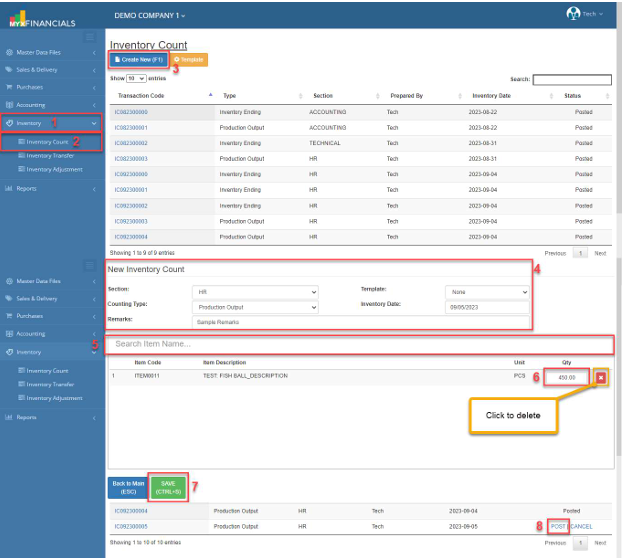
How to Add New Inventory Count:
- Go to Inventory
- Click Inventory Count
- Click Create New (F1)
- Enter the Section, Counting Type, Remarks, Template and Inventory Date.
- Enter the Item Code or Description.
- Enter the Qty (Quantity) of the item.
- Click Save (CTRL+S)
- After saving, make to Post the Inventory Count.
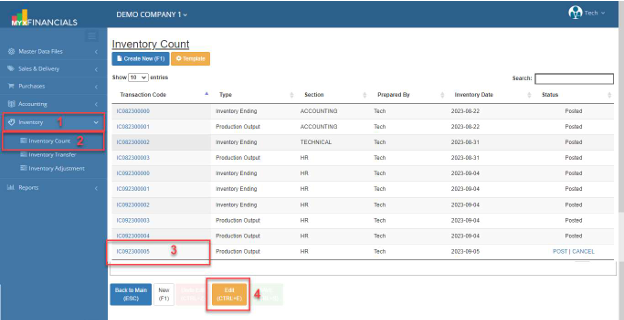
How to Update the Inventory Count
- Go to Inventory
- Click Inventory Count
- Select and click the Transaction Code
- Click Edit (CTRL+E)
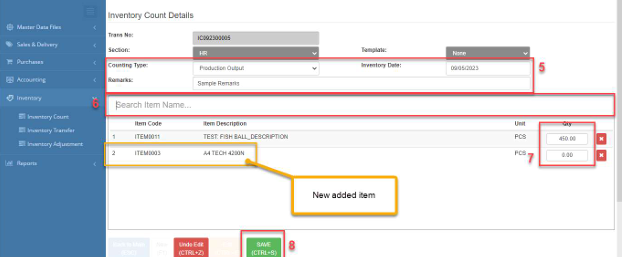
- Enter the new details for Counting Type, Remarks, and Inventory Date.
- You can also add another item. Enter the Item Code or Description.
- Enter the new Qty (Quantity) of the item.
- Click Save (CTRL+S)
✔️ o Posted Inventory Count is not allowed to be updated.
✔️ o Grayed out is not allowed to be updated.
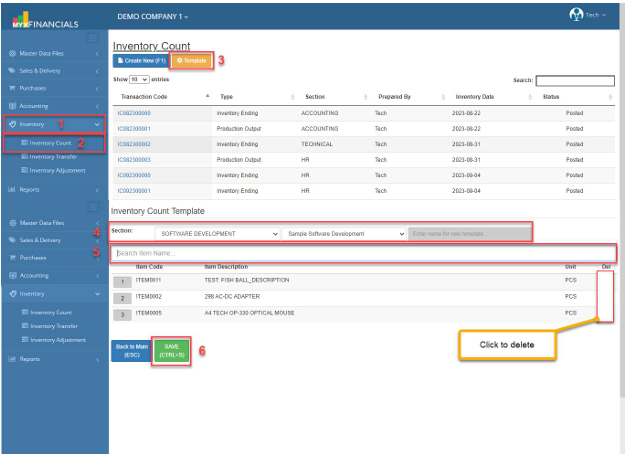
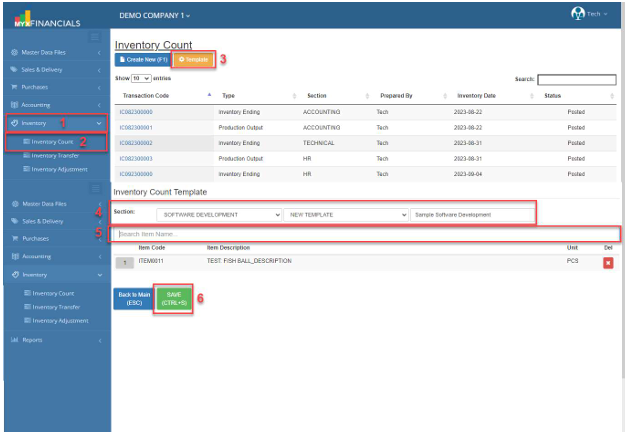
How to Add New Template in Inventory Count
- Go to Inventory
- Click Inventory Count
- Click Template
- Select Section, New Template, and enter the name of the new template.
- Select an item.
- Click Save (CTRL+S)
How to Update the Template in Inventory Count
- Go to Inventory
- Click Inventory Count
- Click Template
- Select the Section you want to update the template. Then select the created template.
- Select a new item to be included in this template.
- Click Save (CTRL+S)