Suppliers
The Suppliers module in MyxFin allows users to manage vendor information efficiently. Users can create new suppliers, update existing supplier details, or inactivate suppliers who are no longer active. This ensures that your accounts payable and purchasing records are accurate and up-to-date.
How to Create a New Suppliers:
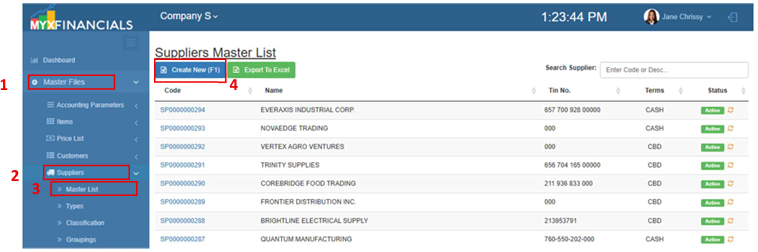
- Go to Master Data Files.
- Click Suppliers
- Click Master List
- Click Create New (F1)
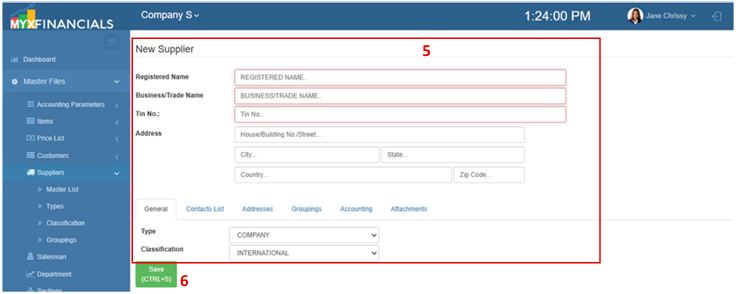
- Enter the details of the new suppliers.
- Click Save (F2)
💡 Take note: In the initial setup, the data for suppliers will be uploaded from the filled-out template by the clients.
How to Update the Suppliers :
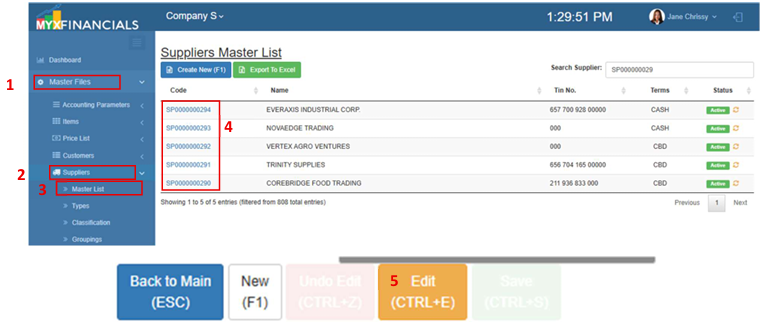
- Go to Master Data Files.
- Click Suppliers
- Click Master List
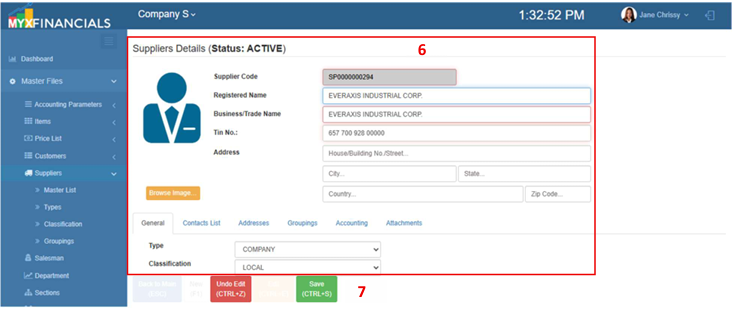
- Select a supplier and click the blue font text or Supplier Code.
- When the supplier details appear, Click Edit (CTRL+E)
- Enter the new details of the supplier.
- Click Save (CTRL+S)
How to Inactive the Suppliers:
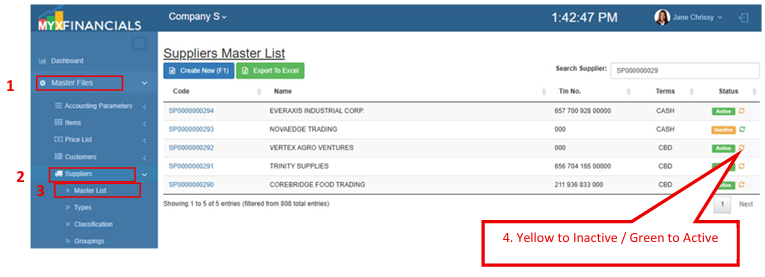
- Go to Master Data Files.
- Click Suppliers
- Click Master List
- Click the yellow cycle icon or Inactive